Live Timer

Timers, alarms and notes for iPhone and Apple Watch
View on the App Store

Watch it in action

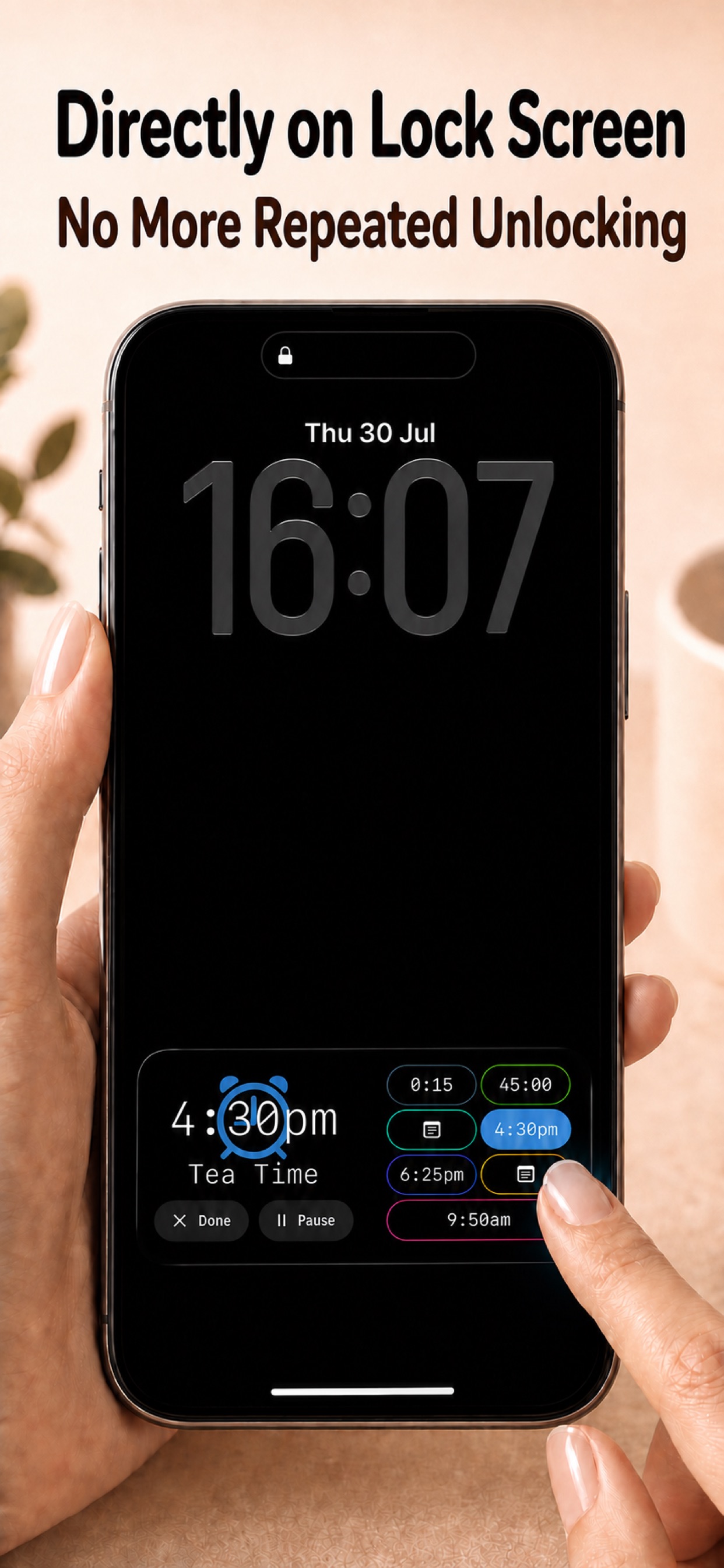
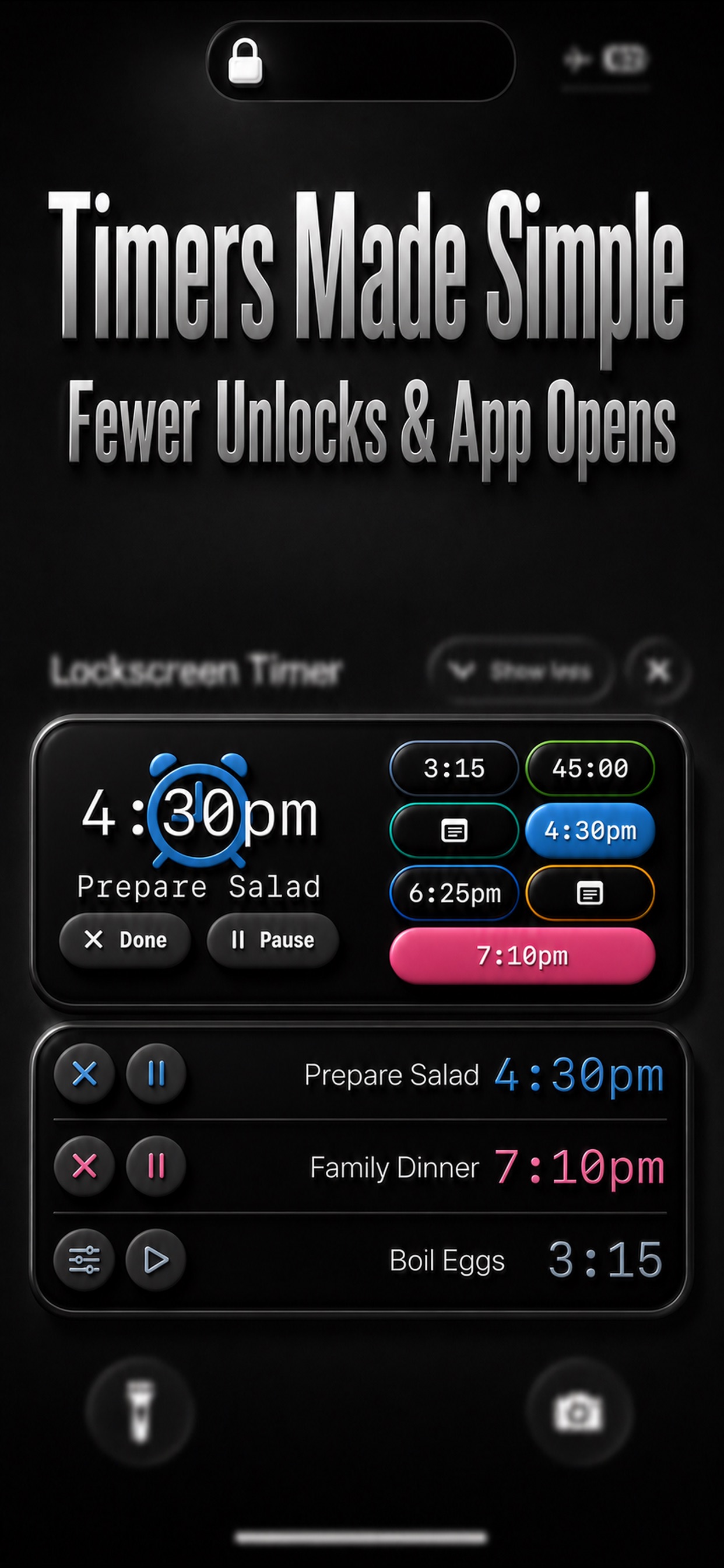
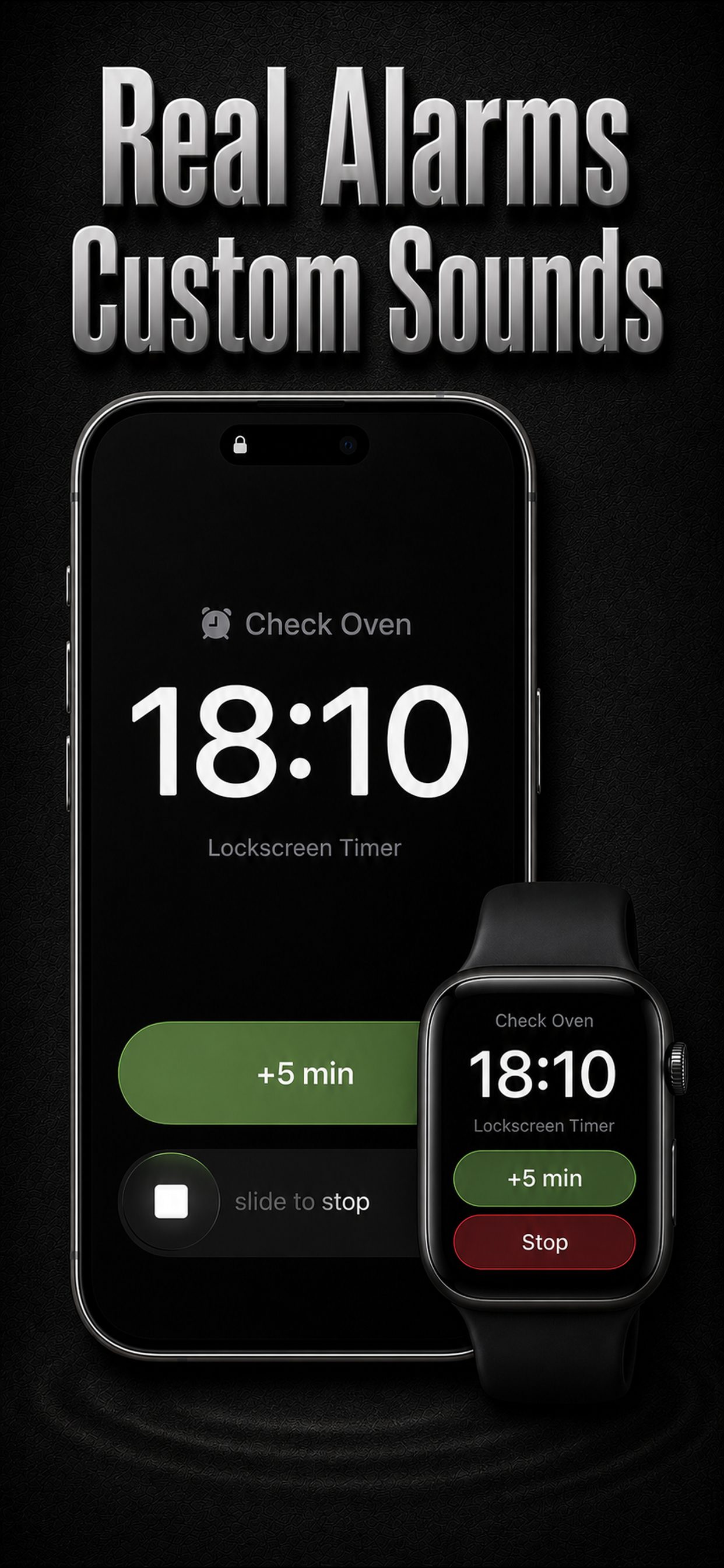
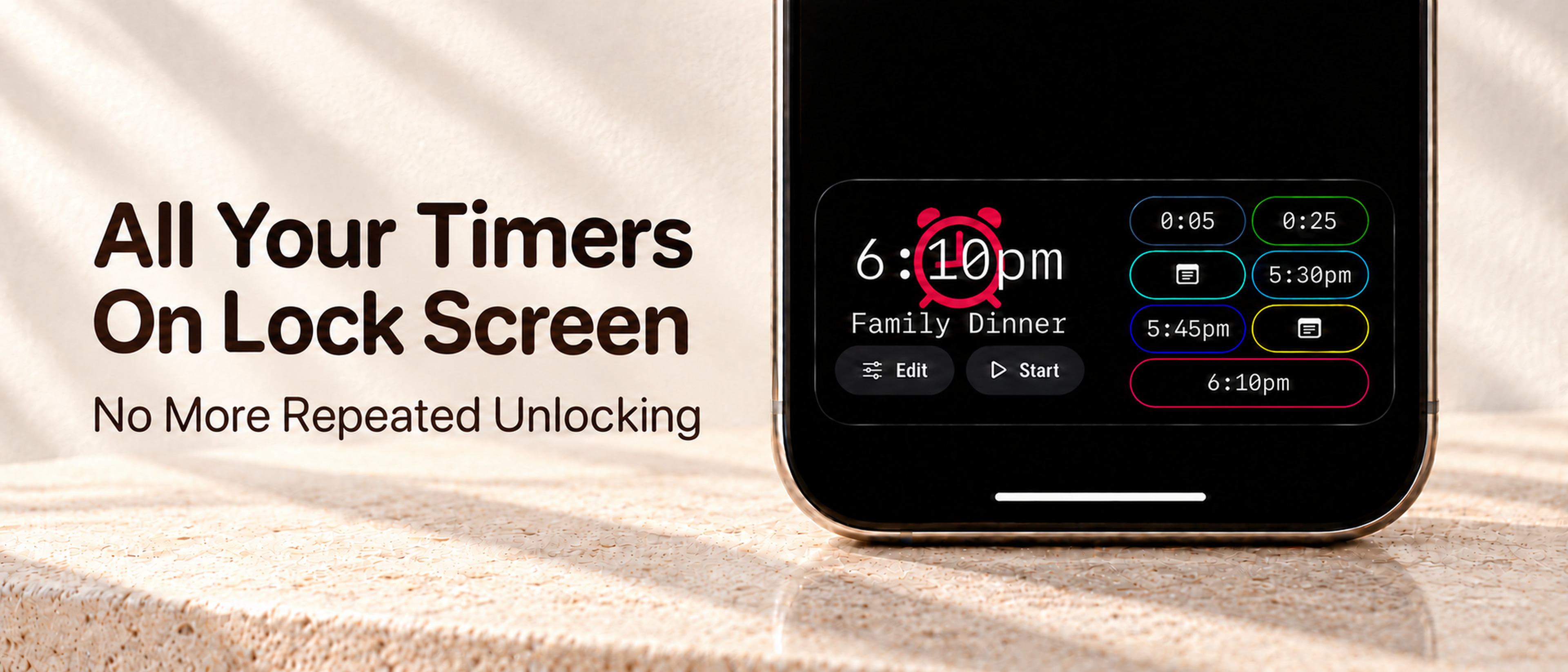
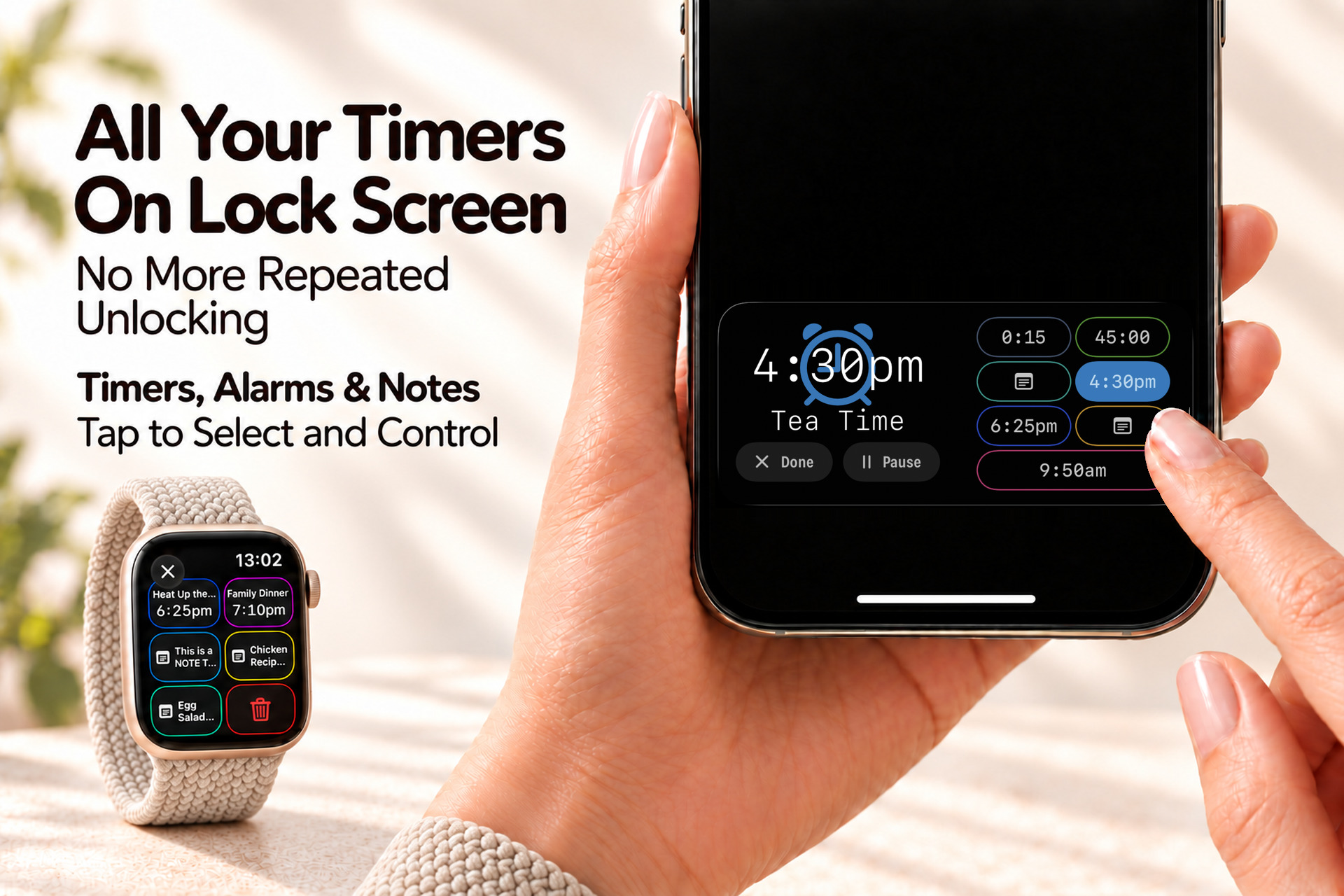
See multiple timers together on the Lock Screen, then select and control the timer you need.
Open the preview video
Timer Board · iPhone · Apple Watch

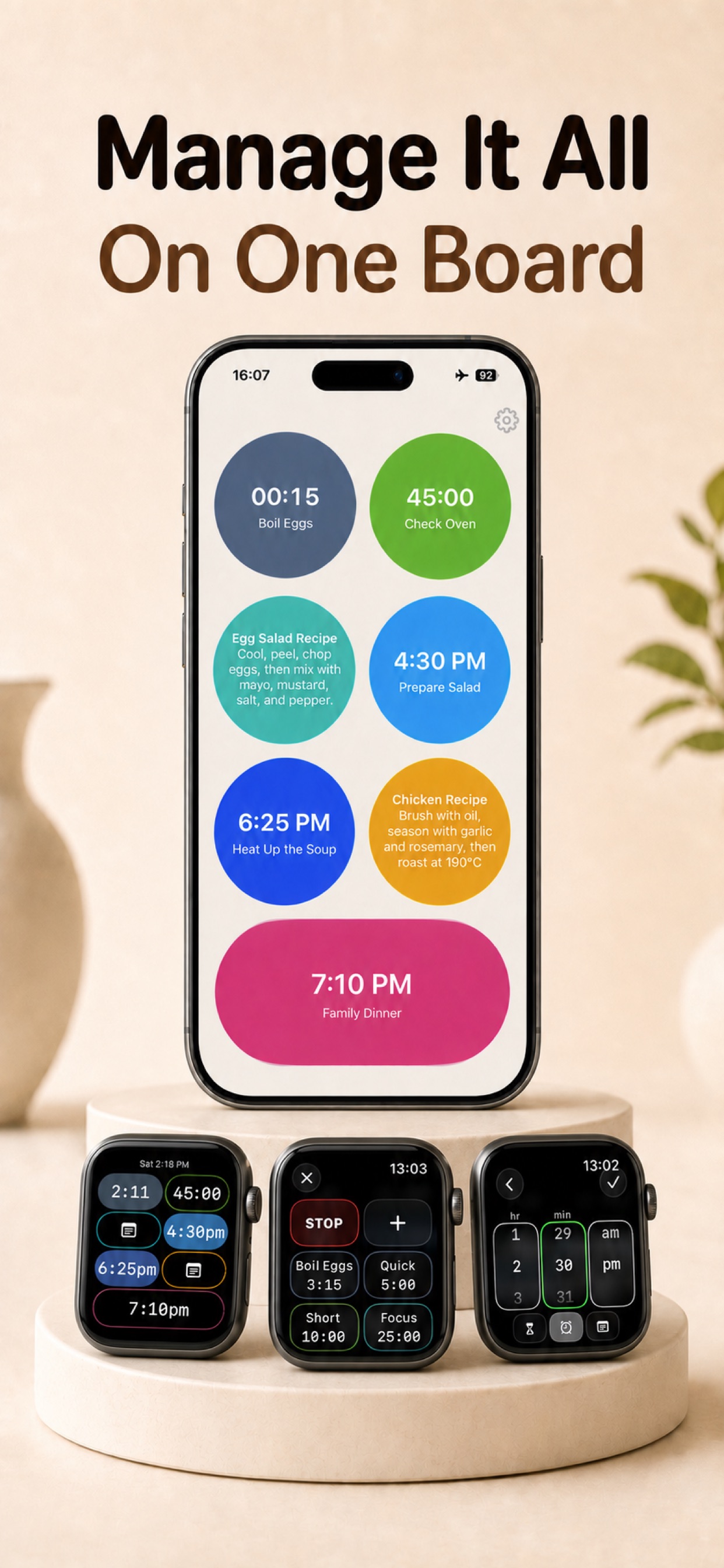
One board for timers, alarms and notes

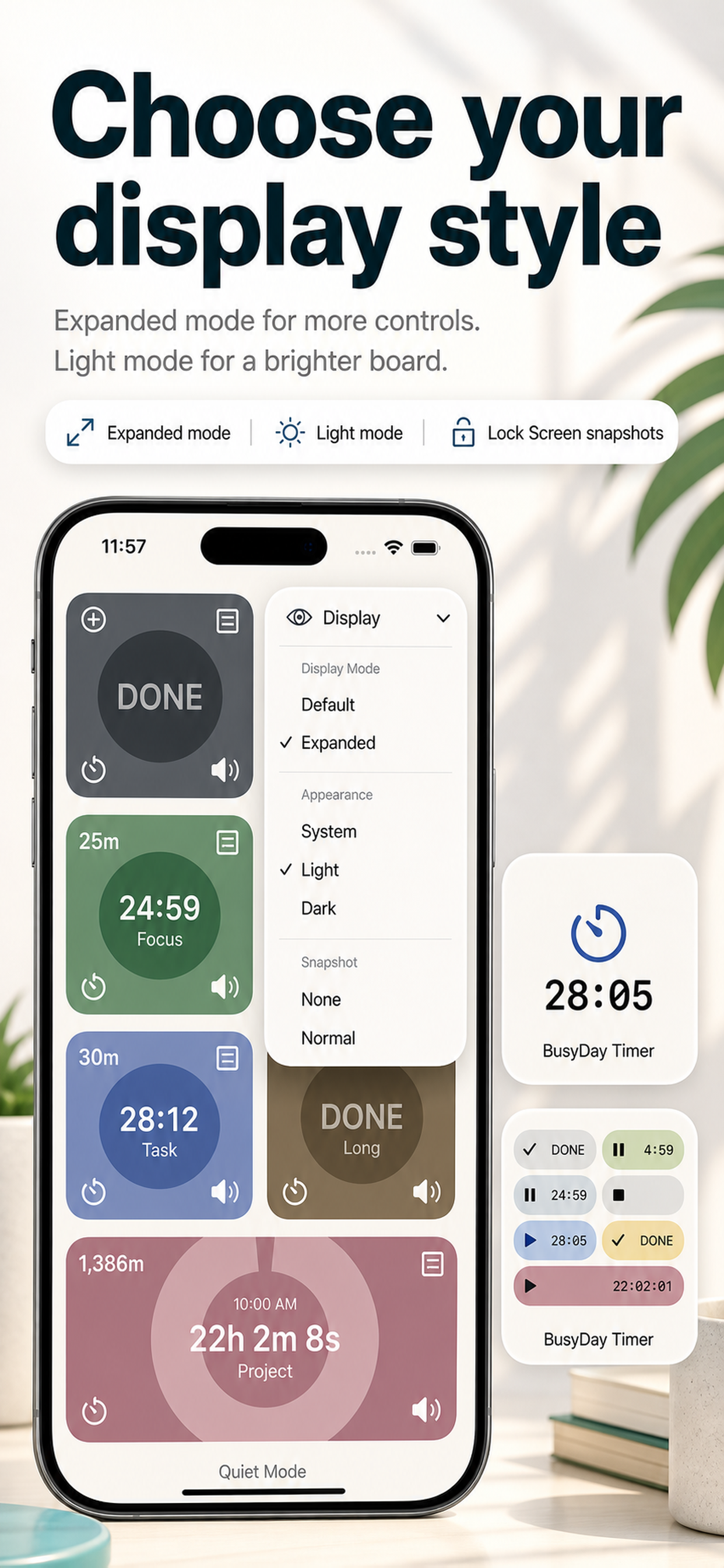
  • One color-coded board containing countdowns, scheduled alarms, and notes
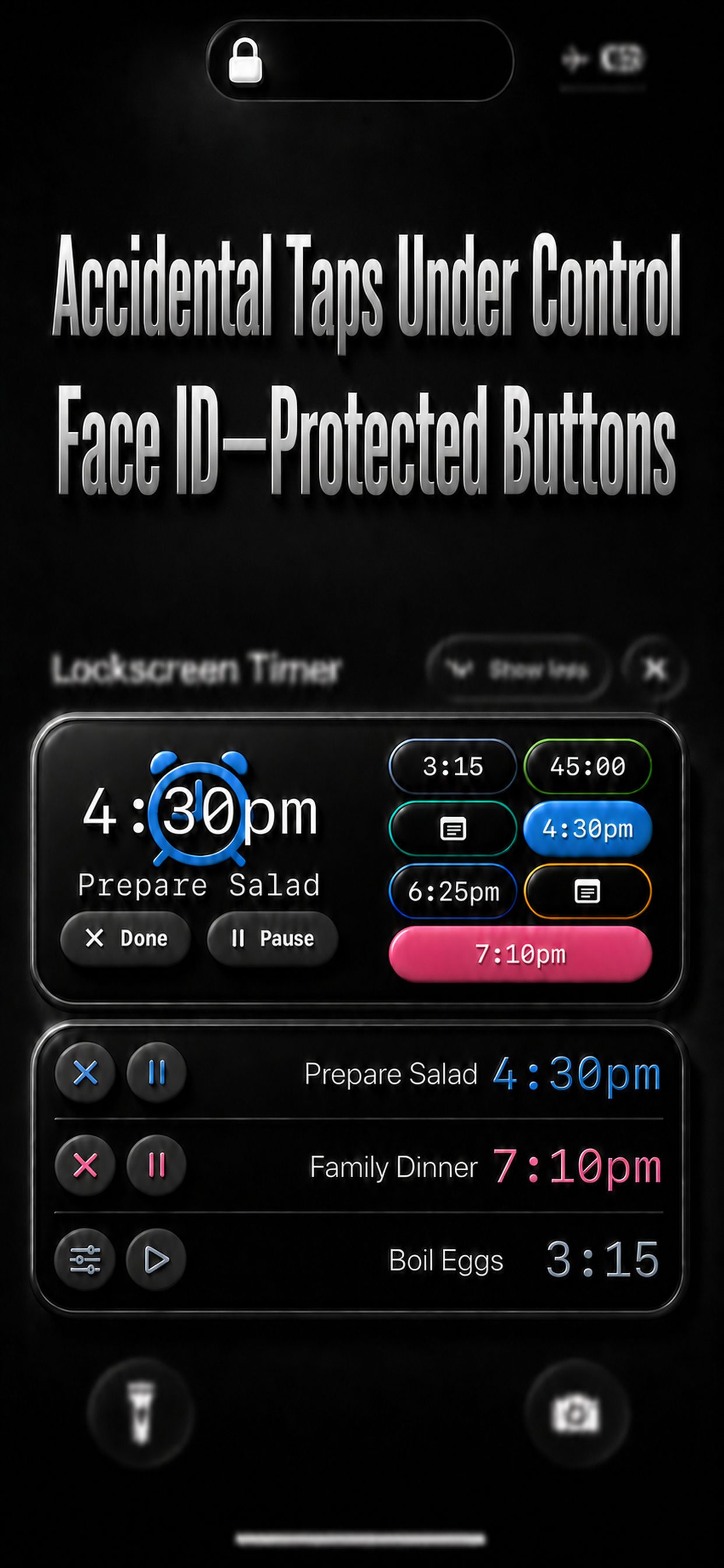
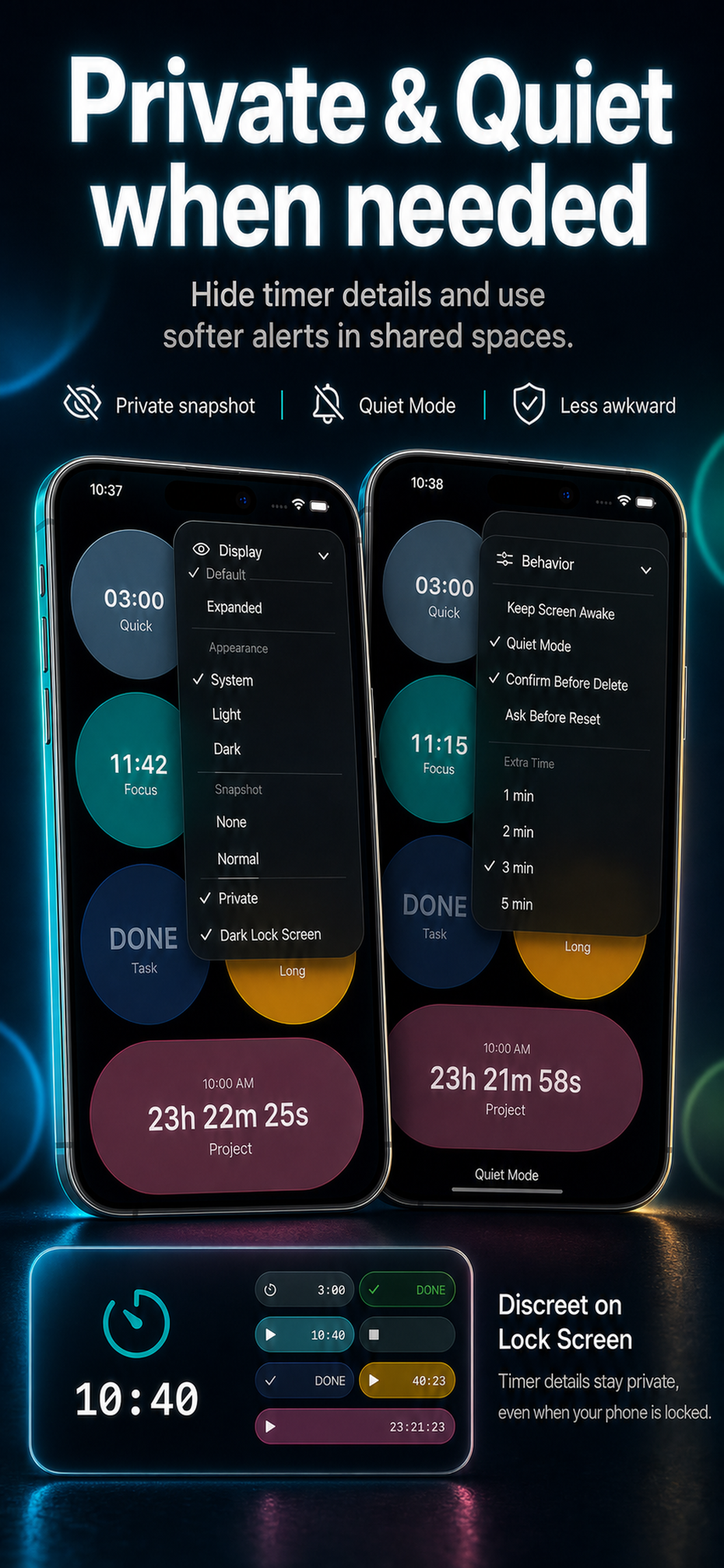
  • Lock Screen Snapshots showing names, colors, remaining time, and expected finish times
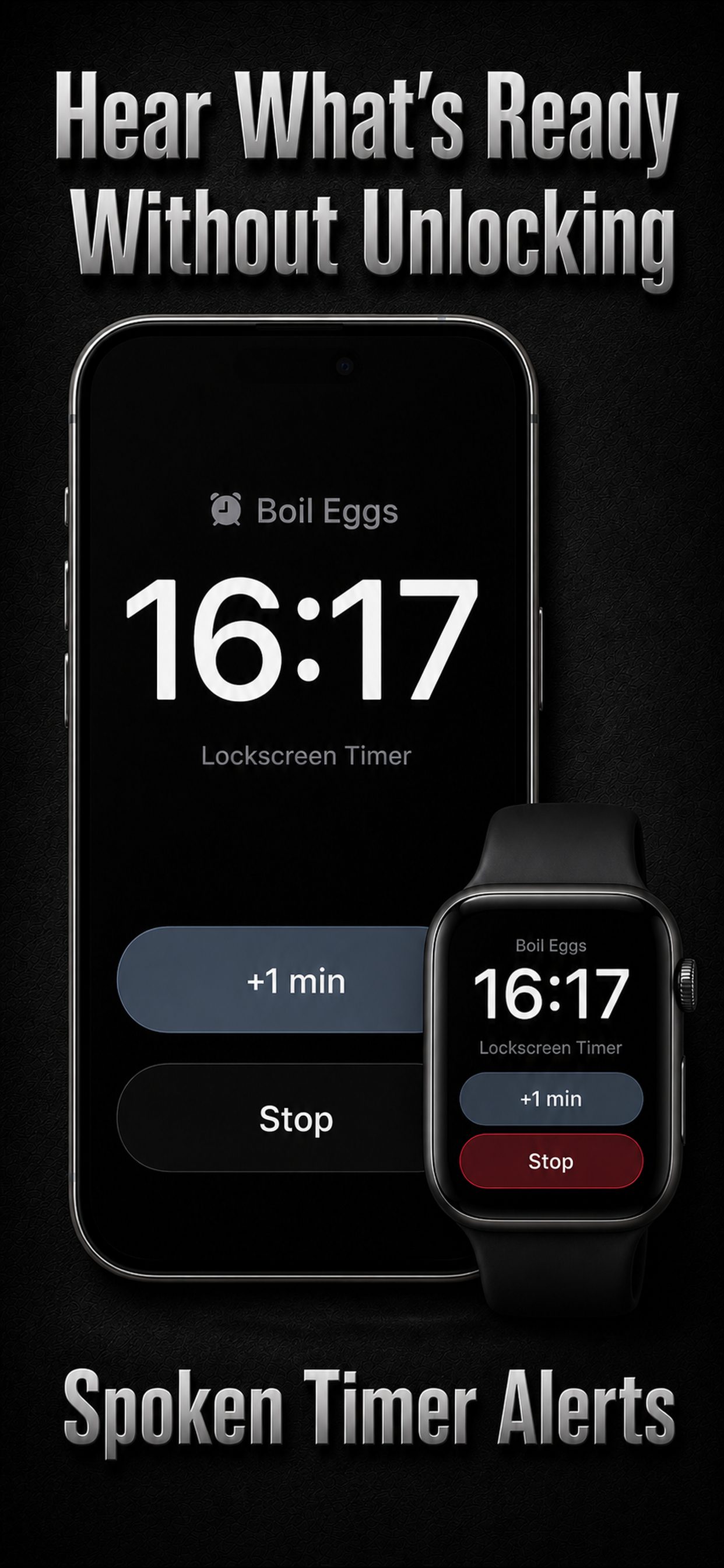
  • Spoken alerts that tell you what is ready without requiring you to look
  • Musical ringtones, recorded sounds, and custom alarms made from audio or video files
  • A native seven-slot Apple Watch board
  • Lock Screen controls protected by iPhone authentication, including Face ID, to help prevent accidental taps
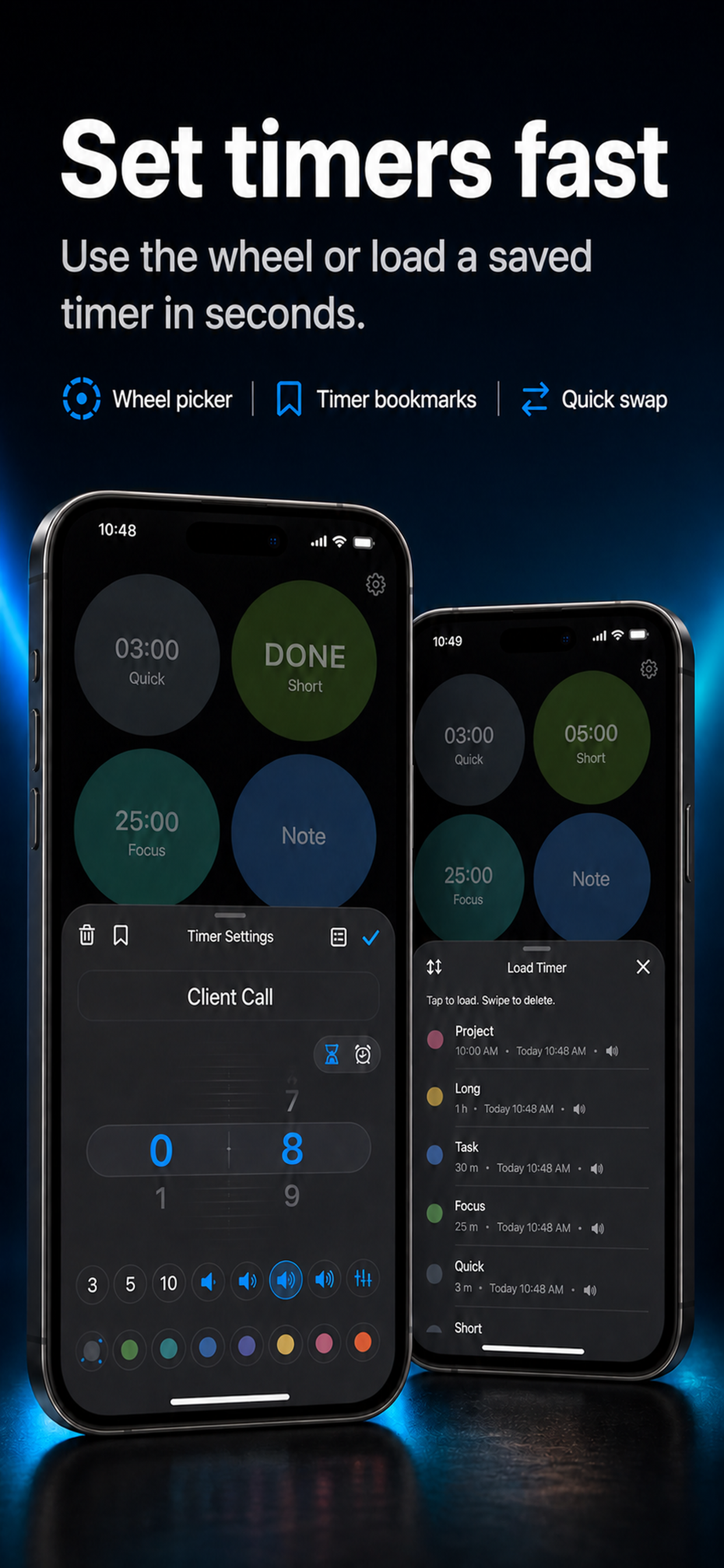
  • Saved timer configurations and Markdown notes
  • Siri controls and Home Screen widgets

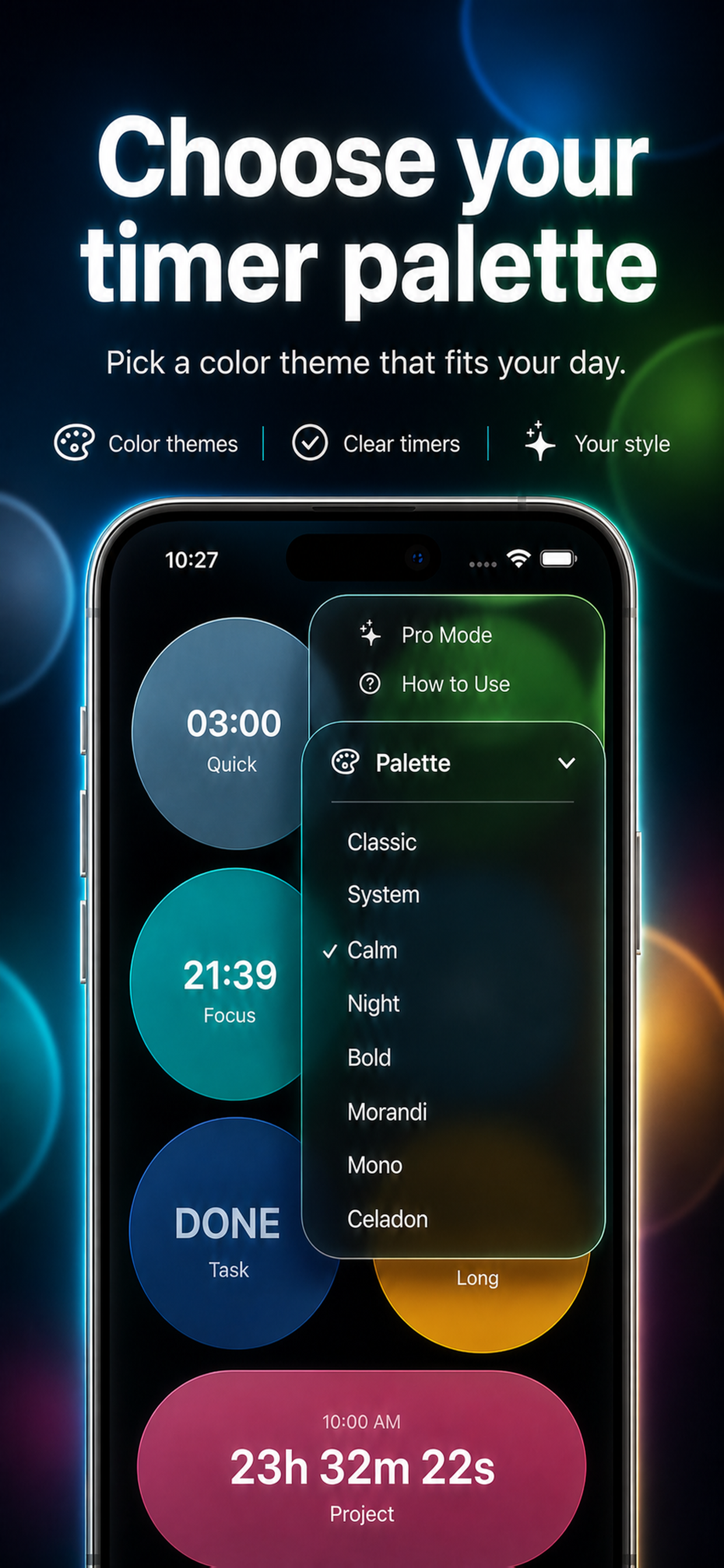
Additional timer slots and palettes are available through in-app purchases. Purchases and Restore
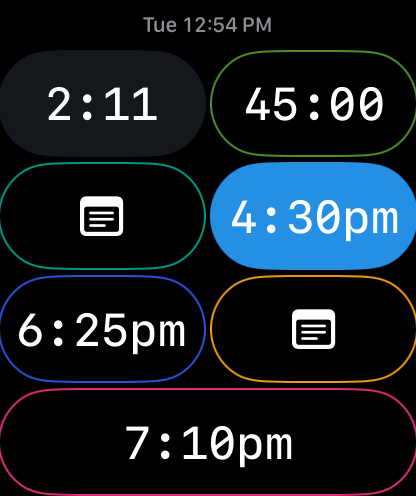
Your timer board on Apple Watch

Your timer board on Apple Watch

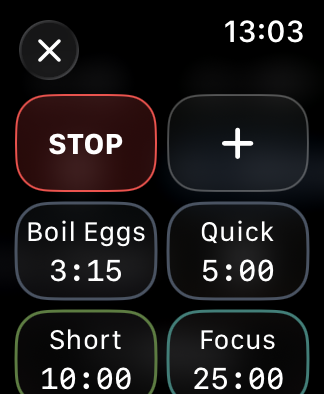
View all seven slots in the native Apple Watch app. Control timers, edit notes, and quickly load saved setups or configure new timers. Timer and note changes require a connection to the paired iPhone.

See the Apple Watch screenshot walkthrough

Select a screenshot to see it at full size.

Watch screenshots and short app recordings show the English interface.

Control and set timers

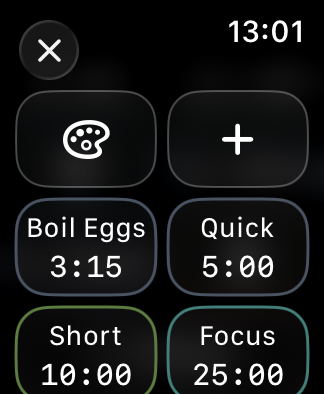
Touch and hold for controls

Touch and hold for controls

Touch and hold a timer to open its setup grid. A running timer shows a Stop button.

Load a saved setup

Load a saved setup

Choose a saved timer from the setup grid instead of entering its settings again.

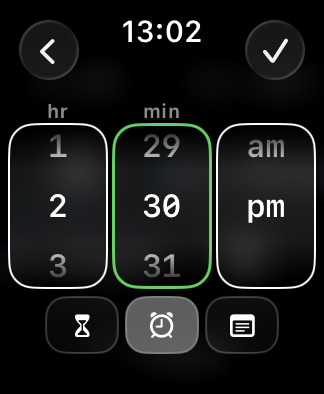
Set a scheduled time

Set a scheduled time

Choose +, select Scheduled Time, set the clock time, then save with the checkmark.

Read and manage notes

Tap a note to read it

Tap a note to read it

Open a note from the board to read its full text on your wrist.

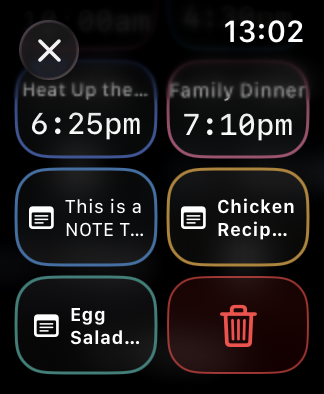
Touch and hold to manage

Touch and hold to manage

Open the setup grid to load a saved note, change its color or delete the current item.

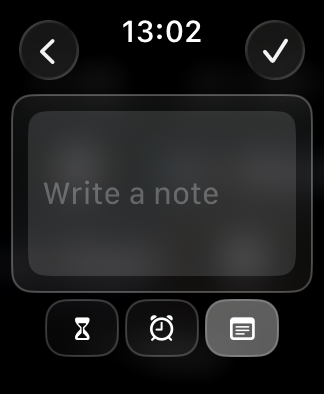
Write a note on Watch

Write a note on Watch

Choose +, select Note, enter your text, then save with the checkmark.

The Watch app can show its cached board, but timer and note changes require the paired iPhone to be powered on, nearby, and reachable. When disconnected, the board is view-only and actions are not queued.

Smart Stack shows the most relevant active timer and one action.

Install and use the Watch app

Explore the app

Scroll through the screenshots. Select an image to open it at full size.