Help & Support
Instructions for Live Timer 1.3.4 on iPhone and Apple Watch.
Board and Timers
Add Item
Tap an available empty slot, then choose Timer or Note. Touch and hold an existing item to edit it.
Set a Timer
In timer settings, choose a name, color, sound, and either Duration or Scheduled Time. Tap the checkmark to save.
Tap Quieter or Louder to choose a ringtone from that category. Save with the checkmark to remember your choice for new timers in the app. TTS and custom audio stay with each timer.
Scheduled Time
Duration counts down after you start it. Scheduled Time runs to the next occurrence of the selected clock time; if it has passed today, it uses tomorrow.
Control Timers
Tap an idle or paused timer to start or resume it. Tap a running timer to pause it, a ringing timer to dismiss it, or a Done timer to reset it.
Note
Choose Note for an available empty slot. Tap or touch and hold the note to edit its text or color.
Saved Timers and Notes
In item settings, tap the bookmark to save the current setup. Tap the list button to load a saved item into that slot. For a timer, tap the checkmark after loading.
See the setup steps
Watch screenshots and short app recordings show the English interface.
Alarm Sounds and Speech
Custom Sound
In Timer Settings, open Custom Sound to record or import an audio or video file. Choose up to 29 seconds. Microphone permission is needed only for recording.
Text-to-Speech Alarm
In Timer Settings, choose Text-to-Speech Alarm. Enter up to 300 characters, choose one of five Speed and Volume levels, then tap Use to prepare the spoken alarm.
Quiet Mode
Quiet Mode uses the quieter alarm sound on iPhone, including timers already running. A bar at the bottom of the board shows when it is on. Apple Watch follows its own Silent Mode.
Alarms and Permissions
Timer Permissions
Starting a Duration or Scheduled Time timer requires Alarms and Notifications. If either permission is off, the app offers iPhone Settings instead of starting.
Alarm Dismissal Gesture
iPhone Settings > Accessibility > Touch > Preferred Single-Tap Action controls whether a ringing alarm uses Stop or Slide to Stop. The app cannot override it. Behavior > When Timer Ends still controls the timer's state after dismissal.
When Timer Ends
Reset returns a dismissed timer to its configured idle state. Done leaves it marked Done until you reset or restart it.
Extra Time
Choose Auto or a fixed 1, 3, or 5 minutes. This amount is used by Extra Time controls and Siri Extend; Auto derives it from the timer's original duration.
Lock Screen Snapshot
Snapshot Styles
The Snapshot appears on the iPhone Lock Screen. Standard shows the most relevant timer, controls, and full board. Three Rows shows up to three prioritized timers. Simple is compact with controls; Minimal omits controls. None hides the snapshot.
Live Activities
The Snapshot and its controls require Live Activities for this app in iPhone Settings. Turning Live Activities off does not stop timers or alarms.
Privacy
Turn on Private under Display > Snapshot to hide timer names and note text without changing the selected layout.
Always On Display
On supported iPhones, Always-On Display dims the same snapshot and adjusts its colors for readability. Timer timing and snapshot actions do not change.
Compare Snapshot layouts
Watch screenshots and short app recordings show the English interface.
Apple Watch
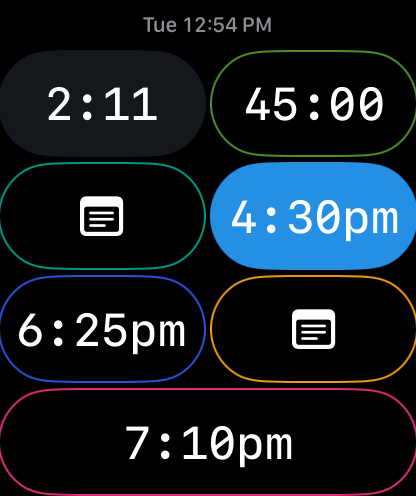
The board uses the same seven-slot 2 / 2 / 2 / 1 layout. Tap a timer for its current action; tap a note to read it.
See the Apple Watch screenshot walkthrough
Install the Watch App
On the paired iPhone, open the Watch app. Under Available Apps, find this app and tap Install. With Automatic App Install enabled, it may already be installed.
Connection
The Watch app can show its cached board, but timer and note changes require the paired iPhone to be powered on, nearby, and reachable. When disconnected, the board is view-only and actions are not queued.
Timer Board
The board uses the same seven-slot 2 / 2 / 2 / 1 layout. Tap a timer for its current action; tap a note to read it.
Quick Setup
Touch and hold any accessible slot to load a saved timer or note, change its color, create a timer or note, or delete the current item.
Note
Tap a note to read it. Touch and hold it to open the same setup grid and edit or replace it.
Live Activities
The Apple Watch app shows all seven slots in a 2 / 2 / 2 / 1 layout. Tap a configured timer to start, pause, resume, stop, or reset it while the iPhone is connected. Smart Stack still shows the most relevant active timer and one action.
See the Apple Watch screenshot walkthrough for timer controls, saved setups, scheduled times and notes.
Home Screen Widgets
Widget Types
Timer Grid shows the board. Timer Status shows the most relevant timer. Home Screen widgets show status only; use the app or Snapshot controls to change timers.
Add a Widget
Touch and hold the Home Screen, tap Edit, tap Add Widget, then search for this app. Choose Timer Grid or Timer Status.
Siri
Siri Language
Siri uses the language selected in iPhone Siri settings. The app's Language menu does not change Siri; use the same language for the examples below.
English command examples
- “Run Live Timer”
- “Run all Live Timer”
- “Pause Live Timer”
- “Pause all Live Timer”
- “Resume Live Timer”
- “Resume all Live Timer”
- “Stop Live Timer”
- “Silence Live Timer”
- “Reset Live Timer”
- “Extend Live Timer”
- “Extend all Live Timer”
- “Restart Live Timer”
Choose a Timer
When more than one eligible timer exists, Siri asks which one. Choose a listed timer name or slot label, or All timers when that option appears. If Run finds no idle timer, Siri can ask for a duration and use the first available empty slot.
How Stop Works
The Stop command dismisses every ringing or attention timer immediately. If none needs attention, Siri stops one running or paused timer, or asks which one.
What Reset Does
Reset returns every non-idle Duration or Scheduled Time timer to its configured idle state. It keeps timer settings and does not change notes or empty slots.
When Extend Works
Extend works only after a timer reaches zero and needs attention. The All timers form extends every eligible timer.
What Restart Does
Restart starts one configured timer again from its original duration or next scheduled time. It never offers All timers.
Settings and History
Display
Default keeps the board simple. Expanded adds progress rings plus visible duration, load, reset, and sound controls.
App Icon
In the Settings menu, open Display > App Icon. Choose a design to use it, or select Default to restore the default icon.
Appearance and Palette
Display > Appearance follows System or forces Light or Dark. Palette changes board colors; additional palettes require the Palette unlock.
Keep Screen Awake
While the app is open, Behavior > Keep Screen Awake prevents automatic screen sleep only when at least one timer is running. It does not change timing or alerts.
Confirm Before Delete
Behavior > Confirm Before Delete asks before deleting a timer or note. When it is off, deletion happens immediately.
Language
Language changes text in the app, widgets, and the Snapshot. Siri continues using the language selected in iPhone Siri settings.
Usage History
Usage History records timer starts, pauses, resets, extensions, completions, and note changes. Tap Share to export a TSV file.
Version 1.3.4 includes a refreshed Default icon and additional icon designs. Choose Default in the picker to restore the current default icon.
Purchases and Restore
Pro Mode
Pro Mode offers unlocks for all seven timer slots and additional palettes, plus Restore Purchases.
Four slots are available without the all-slots unlock. Pro Mode offers an in-app purchase to unlock all seven slots. Additional palettes have a separate unlock. Use Restore Purchases for purchases made with your Apple Account.
Troubleshooting
A timer will not start
Starting a Duration or Scheduled Time timer requires Alarms and Notifications. If either permission is off, the app offers iPhone Settings instead of starting.
The Lock Screen Snapshot is missing
Check that Live Activities is enabled for this app in iPhone Settings. Check Display > Snapshot in the app: None hides the Snapshot. Start a timer and check the Lock Screen again.
The Snapshot and its controls require Live Activities for this app in iPhone Settings. Turning Live Activities off does not stop timers or alarms.
The Watch board is visible but controls do not work
The Watch app can show its cached board, but timer and note changes require the paired iPhone to be powered on, nearby, and reachable. When disconnected, the board is view-only and actions are not queued.
The Watch app is not installed
On the paired iPhone, open the Watch app. Under Available Apps, find this app and tap Install. With Automatic App Install enabled, it may already be installed.
An alarm uses Slide to Stop instead of Stop
iPhone Settings > Accessibility > Touch > Preferred Single-Tap Action controls whether a ringing alarm uses Stop or Slide to Stop. The app cannot override it. Behavior > When Timer Ends still controls the timer's state after dismissal.
Alarms are too loud or too quiet
Quiet Mode uses the quieter alarm sound on iPhone, including timers already running. A bar at the bottom of the board shows when it is on. Apple Watch follows its own Silent Mode.
Tap Quieter or Louder to choose a ringtone from that category. Save with the checkmark to remember your choice for new timers in the app. TTS and custom audio stay with each timer.
Names or notes are visible on the Lock Screen
Turn on Private under Display > Snapshot to hide timer names and note text without changing the selected layout.
A widget does not update immediately
iOS controls widget refresh timing. Open Live Timer to confirm the current timer state. Home Screen widgets show status only; use the app or Snapshot controls when you need to change a timer.
Siri Extend does not add time
Extend works only after a timer reaches zero and needs attention. The All timers form extends every eligible timer.
A purchase is not showing
Open Pro Mode and choose Restore Purchases. Use the Apple Account that made the purchase. If the unlock still does not appear, contact support with the app version and the name of the missing unlock. Do not send passwords or payment details.
Frequently Asked Questions
Can I use the app without Apple Watch?
Yes. Timers, notes, alarms and Lock Screen controls work on iPhone. Apple Watch is an optional companion.
Can I use the Watch app without my iPhone nearby?
The Watch app can show its cached board, but timer and note changes require the paired iPhone to be powered on, nearby, and reachable. When disconnected, the board is view-only and actions are not queued.
Why can I see seven slots but not use every slot?
Four slots are available without the all-slots unlock. Pro Mode offers an in-app purchase to unlock all seven slots. Additional palettes have a separate unlock. Use Restore Purchases for purchases made with your Apple Account.
Does switching off Live Activities stop my alarms?
The Snapshot and its controls require Live Activities for this app in iPhone Settings. Turning Live Activities off does not stop timers or alarms.
Can I hide names without changing the Snapshot layout?
Turn on Private under Display > Snapshot to hide timer names and note text without changing the selected layout.
Can Home Screen widgets control timers?
Timer Grid shows the board. Timer Status shows the most relevant timer. Home Screen widgets show status only; use the app or Snapshot controls to change timers.
Can I record an alarm or use audio from a video?
In Timer Settings, open Custom Sound to record or import an audio or video file. Choose up to 29 seconds. Microphone permission is needed only for recording.
What happens if my scheduled time has already passed today?
Duration counts down after you start it. Scheduled Time runs to the next occurrence of the selected clock time; if it has passed today, it uses tomorrow.
How do I choose a different app icon?
In the Settings menu, open Display > App Icon. Choose a design to use it, or select Default to restore the default icon.
Can I export my timer history?
Usage History records timer starts, pauses, resets, extensions, completions, and note changes. Tap Share to export a TSV file.
Why does Siri speak a different language from the app?
Siri uses the language selected in iPhone Siri settings. The app's Language menu does not change Siri; use the same language for the examples below.
Contact Support
Email chanshuowu@icloud.com.
Please include:
- Your iPhone model and iOS version
- Live Timer version
- Apple Watch model and watchOS version, if relevant
- What you expected, what happened, and the steps that led to it
A screenshot or short recording can help. Remove private timer names or note text before sharing.
Information you send is used to respond to your support request. See the Privacy Policy.